Car Touch Screen Not Working After Cleaning?

If your car’s touchscreen stops responding right after cleaning, the safest first steps are simple: power off the car, let the screen dry completely, then remove any residue with a microfiber cloth barely dampened with distilled water. Dry it immediately. If touch remains unresponsive, restart the infotainment system, then inspect the display connection only if you can safely access it. Replace the digitizer last, after ruling out moisture, residue, software lockups, and a loose connector. The basic checks usually take under 30 minutes.
Key Takeaways
- Use the right cloth. Use microfiber only. Avoid paper towels and pressure that could push liquid inward.
- Avoid alcohol and sprays. Solvents can leave residue or damage coatings, causing ghost touches or dead zones.
Car Touch Screen Not Working After Cleaning
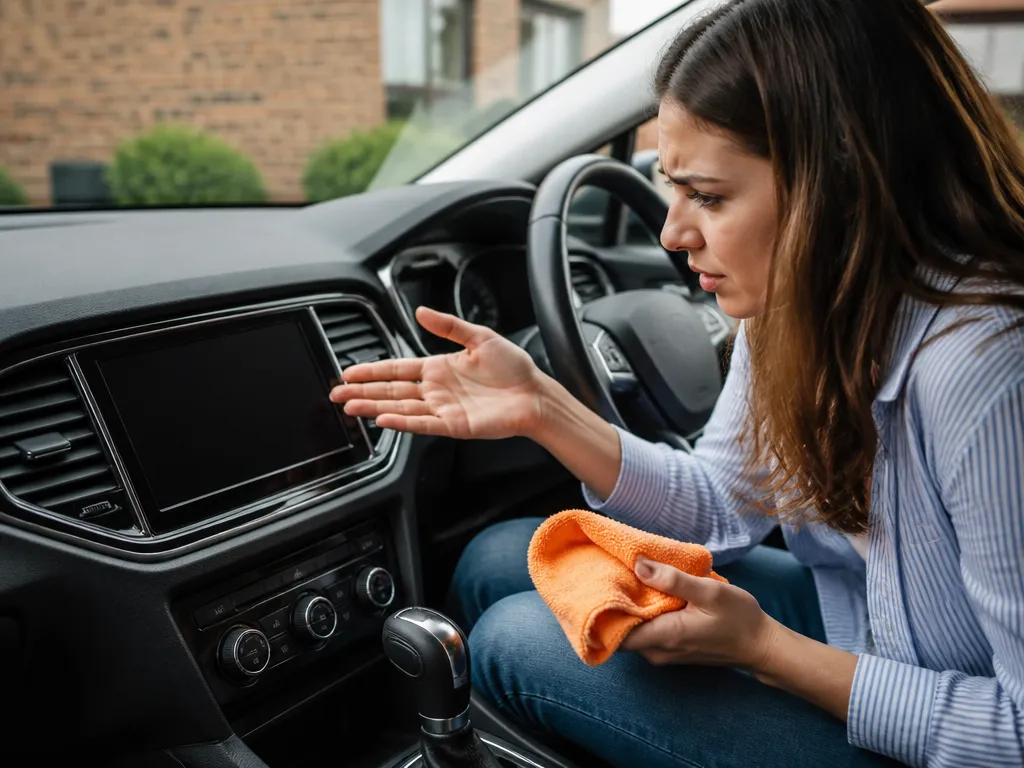
A touchscreen that quits after cleaning usually has a surface, moisture, software, or connection problem rather than an unexplained electrical failure. The two most common causes are moisture trapped under or around the glass and cleaning residue that interferes with the capacitive touch layer.
The symptom pattern helps narrow the cause:
- No touch anywhere: Suspect moisture, a locked-up touch controller, or a loose display connector.
- Partial response or dead zones: Suspect residue, coating damage, or a failing digitizer.
- Ghost touches or drifting input: Suspect moisture, residue, scratches, or coating damage.
- Normal display with no touch input: Suspect the touch layer or its connection, especially after drying and restarting.
Start with the screen itself. Do not keep wiping if it is completely unresponsive; repeated cleaning can push liquid or residue farther into the bezel.
What to Check First After Screen Cleaning
Power off the car completely if it is safe to do so, then wait. Many touch failures clear after the screen and the area around the bezel dry, especially when cleaner or water seeped into the seams during wiping.
Inspect the glass under good light. Look for haze, rainbow streaks, droplets, or a sticky feel. A thin film can interfere with capacitive sensing even when the screen appears dry.
Use this order:
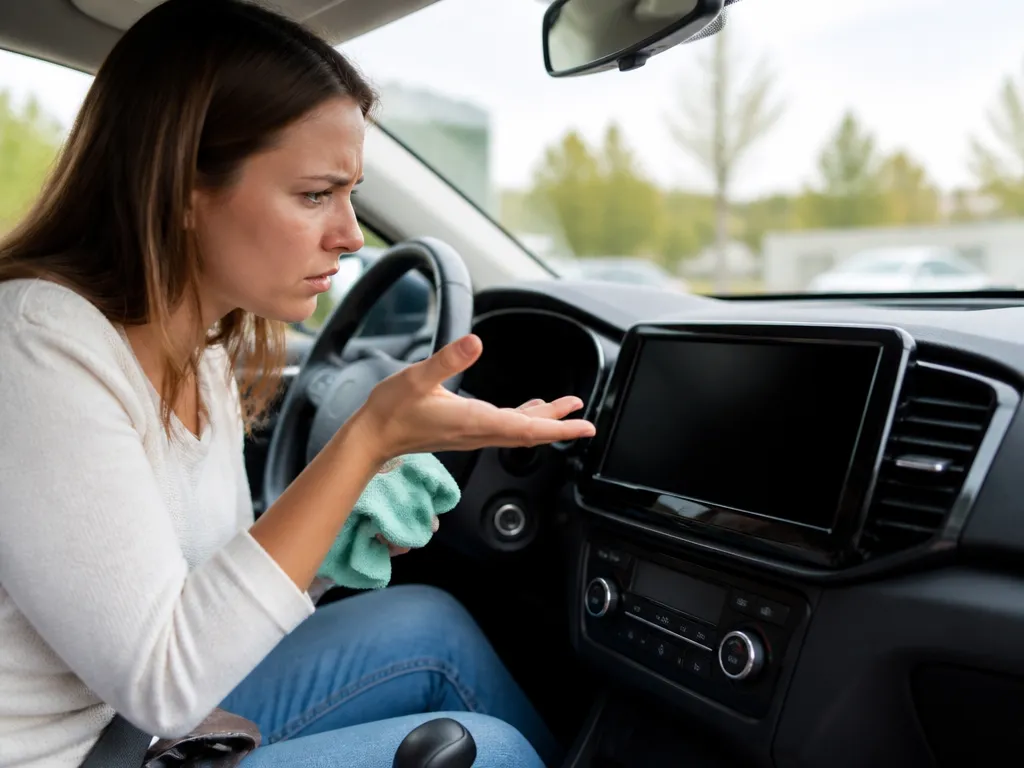
- Check for wetness or fogging. If the glass looks hazy or you see droplets near the bezel, stop testing and let it dry longer.
- Dry your finger. A damp fingertip can confuse a capacitive screen and make a working display appear faulty.
- Test several areas. Tap the center, corners, and edges with a dry fingertip.
- Try a compatible stylus. Only do this if your vehicle supports one; many car touchscreens do not.
- Stop if the entire screen is dead. More wiping will not fix a locked controller or damaged touch layer and could drive residue deeper into the perimeter.
How Cleaning Can Damage a Capacitive Touchscreen
A capacitive car touchscreen detects changes in the electrical field at the glass surface. Cleaner residue can alter that surface, while scratches or coating damage can make touch detection inconsistent.
Heavy pressure is an easy problem to overlook. Aggressive scrubbing or an abrasive cloth can scratch the protective coating, trap skin oils, and cause ghost touches, drifting input, dead zones, or reduced sensitivity. Paper towels can also leave fibers and may be rough enough to damage the surface over repeated use.
Liquid can cause a different problem. Spraying the screen directly, over-wetting a cloth, or allowing drops to collect at the bezel lets moisture wick into the gap around the display. A small amount can disrupt touch sensing until it evaporates. Repeated cleaning attempts may keep adding moisture instead of allowing the original moisture to dry.
Water, Solvents, and Alcohol Residue Effects
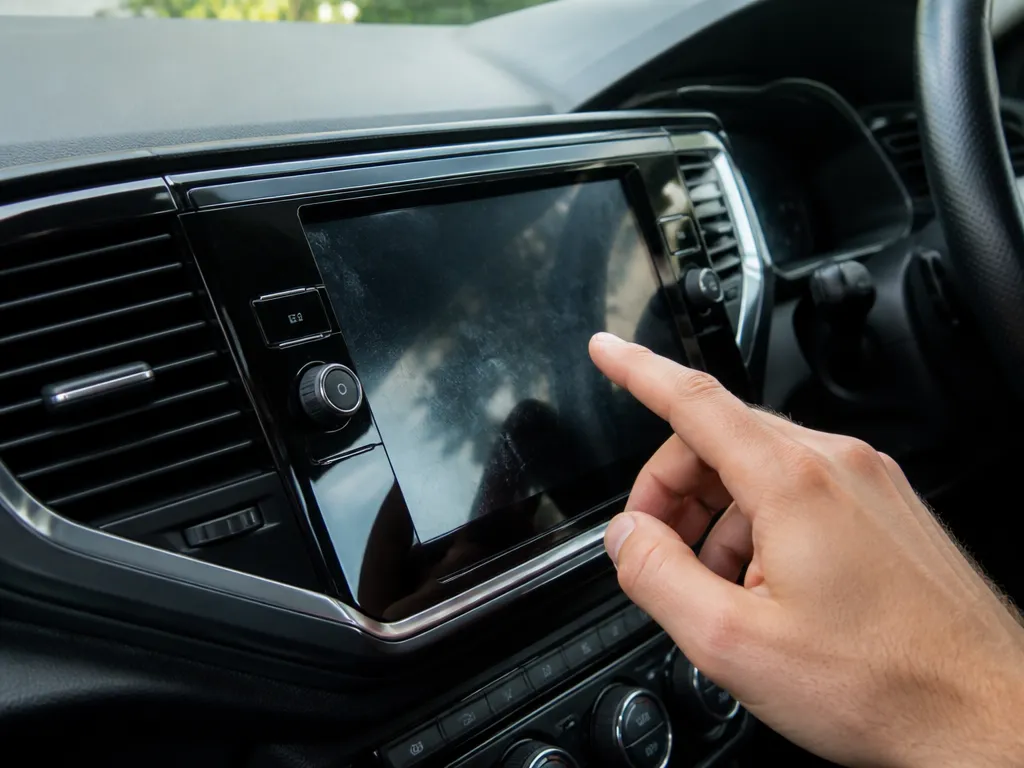
Plain water usually causes a temporary problem, but it can still disrupt touch if it remains at the edges or beneath the glass. A wet wipe or direct spray may leave water in the seams, delaying recovery.
Solvents and some alcohol-based cleaners create a greater risk when the screen worked normally before cleaning. Residue may remain invisible after the glass feels dry. It can slightly conduct electricity or interfere with the capacitive surface pattern, producing unresponsive touch, inconsistent input, or ghost touches.
Clean suspected residue conservatively:
- Use a microfiber cloth only. Wipe lightly without scrubbing.
- Dampen the cloth with distilled water if needed. It should be barely damp, not wet.
- Dry the glass immediately. Use a separate dry microfiber cloth and make gentle passes.
Avoid window sprays, degreasers, glass polish, and disinfectants unless the label specifically says they are safe for touchscreens and skin-contact glass. More aggressive cleaning can turn a temporary moisture or residue problem into coating or digitizer damage.
Reset and Recalibrate the Touchscreen
A power reset can clear a touch-controller lockup after cleaning. Moisture or residue may cause the controller to misread signals and leave the infotainment system in an abnormal state until it fully restarts.
Perform a basic infotainment power cycle:
- Turn the car off.
- Open the driver door and wait a short time for the systems to settle.
- Start the car again and test the screen after the boot process finishes.
Some vehicles also support a manufacturer-specific reset using physical buttons or a long press on the power or volume control. The timing varies by model, so use the vehicle manual rather than guessing.
If the screen responds partially but touch locations are consistently offset or scaled incorrectly, look for a touch calibration or screen calibration option in the infotainment settings. Not every vehicle includes one. Calibration will not solve a wet screen, residue film, or failed digitizer.
If touch never registers after the screen has fully dried and the system has restarted, stop trying random calibration settings. The next steps are hardware checks, including the display connection and digitizer.
When to Reseat the Display Connection
A loose or partially disconnected display ribbon cable can cause total touch failure, particularly if pressure near the bezel shifted an already marginal connector during cleaning. You do not have to pull on a cable directly for a weak connection to move.
Reseating the connection makes sense only if you are comfortable removing the display bezel and understand the vehicle’s trim and electrical layout. Otherwise, damaged clips, scratched trim, or contact with an airbag circuit can cost more than a professional diagnosis.
If you inspect the connection:
- Wait until everything is dry. Do not open the dash while moisture may remain.
- Power the vehicle down fully. This reduces the risk of shorts and accidental airbag-circuit interaction.
- Use proper plastic trim tools. They reduce the chance of breaking clips.
- Inspect the connector and ribbon cable. Look for bent pins, creases, or residue on the contacts.
If touch returns after a proper reseat, you may avoid replacing the digitizer. If it remains dead after drying, rebooting, and reseating, the digitizer or touch layer is the likely failure point.
When to Replace the Touchscreen Digitizer
The digitizer becomes the likely replacement when the display powers on, the screen has dried, the infotainment system has restarted, and the connection is secure, but touch still fails or behaves erratically. The digitizer is the capacitive touch overlay that detects finger input. It can fail after coating damage, cracking, or moisture-related damage that does not resolve over time.
Persistent symptoms support replacement more than further cleaning. Examples include no response in any corner after a full day of drying, dead zones that remain after a reboot, or a bright, normal display with no response to touch gestures.
Confirm that the display itself still works before replacing the touch layer:
- The screen should show graphics normally.
- Physical buttons, if present, should still operate menus that do not require touch.
- The system may show a touch error or calibration prompt, depending on the model.
Digitizer replacement is more labor-intensive than cleaning because access to the display assembly varies by vehicle. If the screen is still under warranty and the failure clearly followed cleaning, bring the vehicle in and document what happened, including the cleaner used, how long the screen was exposed, and what changed immediately afterward.
FAQ
Can I fix a car touchscreen that stopped working after cleaning?
Often, yes. Begin with the drying and reboot steps described above. If touch remains completely dead, move to a connection check or professional hardware diagnosis.
What should I clean a touchscreen with if it is already acting up?
Use a microfiber cloth only. If moisture is necessary, put distilled water on the cloth so it is barely damp, then dry the screen immediately with a separate microfiber cloth. Avoid window sprays and alcohol wipes because residue can interfere with capacitive sensing. If you already used a solvent and touch failed, stop cleaning and let the screen dry thoroughly.
How long should I wait for drying before testing touch again?
Wait until the glass feels completely dry and no haze remains near the bezel. In practice, that often means at least a few hours with the car off, and longer if liquid may have seeped around the edges. Do not rush the test while the screen looks foggy or the bezel still feels wet.
Is a touchscreen reset better than cleaning again?
Yes. Repeating the cleaning process increases the chance of pushing residue or liquid deeper into the display. A reboot is low-risk and can clear a controller lockup. If touch does not return, check the connection instead of wiping the screen again.
Could I have damaged the digitizer just by cleaning?
Yes, especially with strong solvents, abrasive cloths, or aggressive pressure around the bezel. Those methods can damage coatings, cause scratches, or worsen moisture wicking. Digitizer damage usually appears as persistent no-touch behavior after the other likely causes have been ruled out. If the entire screen still fails, replacement is the most likely fix.

- 10 Best Jack For Ford Transit Review (October 2026) - October 12, 2026
- 10 Best Jack For Ford Raptor Review (October 2026) - October 12, 2026
- 10 Best Jack For Ford Ranger Review (October 2026) - October 12, 2026